Self-hosting cloud services is the equivalent of a daily driver project car for computer nerds. It’s cool because it’s yours and you know how it works, but it’s less cool that something is always a bit more broken than would be ideal and realistically more of a hobby than a viable endeavour for the average person. The general exception to this jankyness is Tailscale, a rock-solid magical mostly-peer-to-peer1 VPN that allows all your devices to talk directly to each-other as if they were always on the same local network. If you’re like me and you don’t really want your little local machine full of services exposed to the scariness of the internet, just install it on all your computers and they’ll become available at http://hostname.tailnet-name.ts.net, hidden from the outside world but available to you (and sharable with up to six friends for free!)
Tailscale also has a cool feature called Tailscale Services which is (sorry nice people at Tailscale) uncharacteristically obtuse to set up. Once you do however (and I promise it’s worth it) you get individual app subdomains for each service on your system with SSL and no other services involved! No LetsEncrypt, no Nginx Proxy Manager, no domains, and no direct exposure to the internet!2 I’ll be using TrueNAS Scale, but much of this guide should be generalizable — don’t fully skip the TrueNAS section because there are some gotchas!
Sound cool? Let’s go!
TrueNAS Configuration
If you don’t already have Tailscale set up and accessible on your machines, do that first.3 Once installed and running, in TrueNAS the first thing that we’ll do is create a new dataset for our Tailscale Serve config JSON file. I called mine tailscale-data, it’s owned by the root user and the apps user has read permissions. I also enabled SMB for the dataset so I can easily log into the server through Finder on my Mac and edit the config file that we’ll create in a moment.
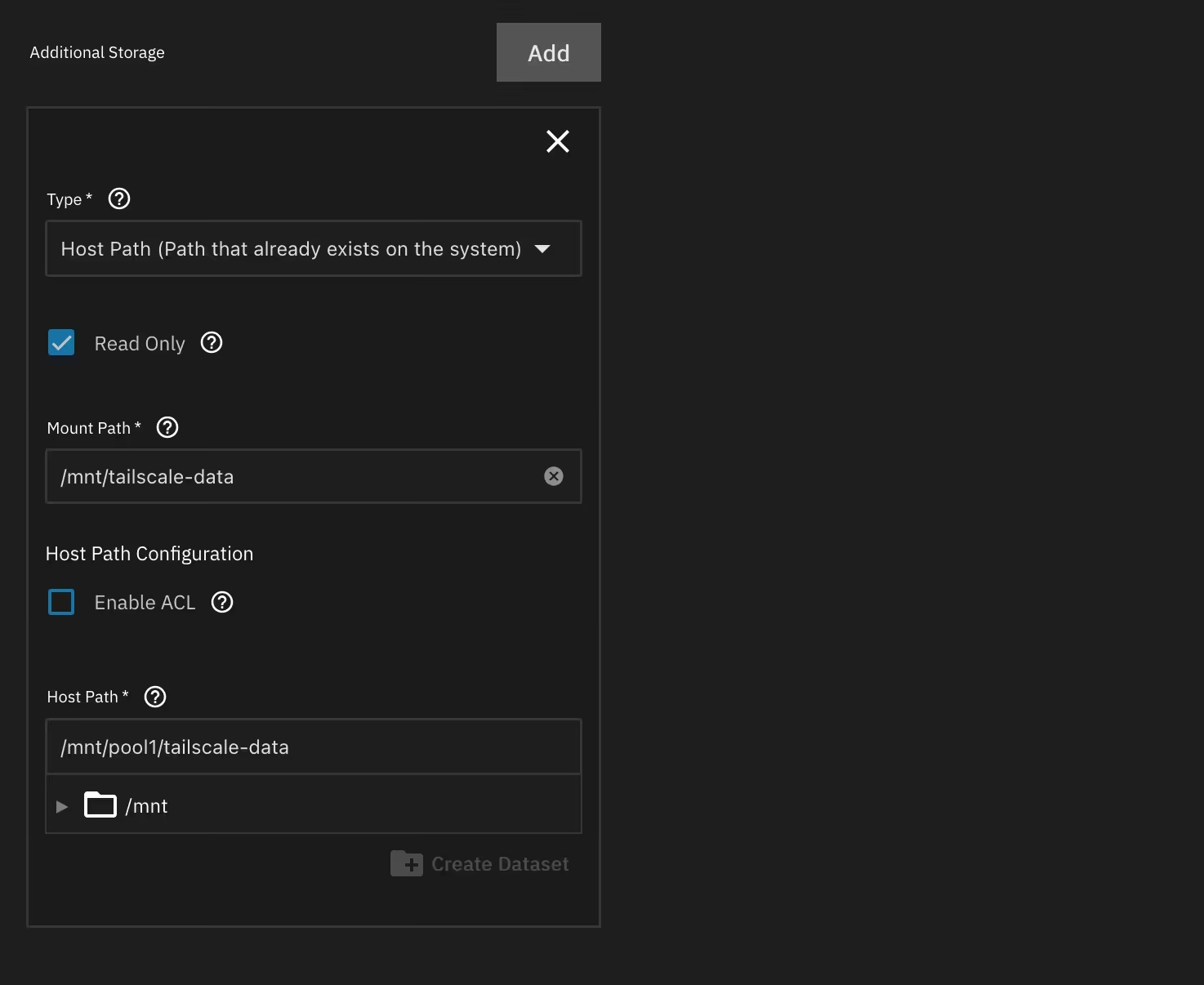
With the dataset configured, we should add it to the app!
- Add a new additional storage entry in the app’s storage settings.
- Set the dataset type to
Host Path. - Add the mount path (where it will show up inside the container), I used
/mnt/tailscale-data. - Set the host path itself it toward the dataset you created above.
Once storage is configured, we’ll need to tell Tailscale to look for our Tailscale Serve config file. Because TrueNAS’ Tailscale app has only one entrypoint, we need to do this with the TS_SERVE_CONFIG environment variable which you should add to the Additional Environment Variables section. I set mine to /mnt/tailscale-data/serve.json as that’s where the JSON file that contains the serve config will be located.
Now we need to author that Tailscale serve config! The big catch here is that we’re going to be using the old syntax for this config — as of publishing the new config isn’t supported by the TS_SERVE_CONFIG environment variable codepath and this quirk is not documented.4
Here’s the config you need as of today. I saved mine directly in my tailscale-data dataset as serve.json to match the environment variable above.
{
  "Services": {
    "svc:navidrome": {
      "TCP": {
        "443": {
          "HTTPS": true
        }
      },
      "Web": {
        "navidrome.platy-neon.ts.net:443": {
          "Handlers": {
            "/": {
              "Proxy": "http://localhost:30043"
            }
          }
        }
      }
    }
  }
}
In this example I’m running Navidrome, a self-hosted music library on port 30043. Change the port number to the port your service is running on and change both instances of navidrome to the name you’d like for the service’s subdomain. The rest can stay as is (assuming you want HTTPS, but that’s why you’re here, right?)
If you’ve done all that correctly (and I’m not missing anything) you can save your app config and start up Tailscale! If you run tailscale serve get-config --all inside the Tailscale container shell, you should see that your config got picked up:
{
  "version": "0.0.1",
  "services": {
    "svc:navidrome": {
      "endpoints": {
        "tcp:443": "http://localhost:30043"
      }
    }
  }
}
Incidentally this response is also the new config format, so once Tailscale fixes their undocumented config shenanigans, you can probably use that one! My blog post is future-proof!
Of course, that’s only half the battle so get ready for…
Tailscale Configuration
First, in the Tailscale console on the web, enable HTTPS on the DNS page. Note that using HTTPS will expose your machine names publicly.
Next, we need to give our host machine a tag to identify it as the machine that is allowed to host this service.
In the machines list, under the relevant kebab actions menu, Edit ACL Tags for your host machine, and give it a tag.
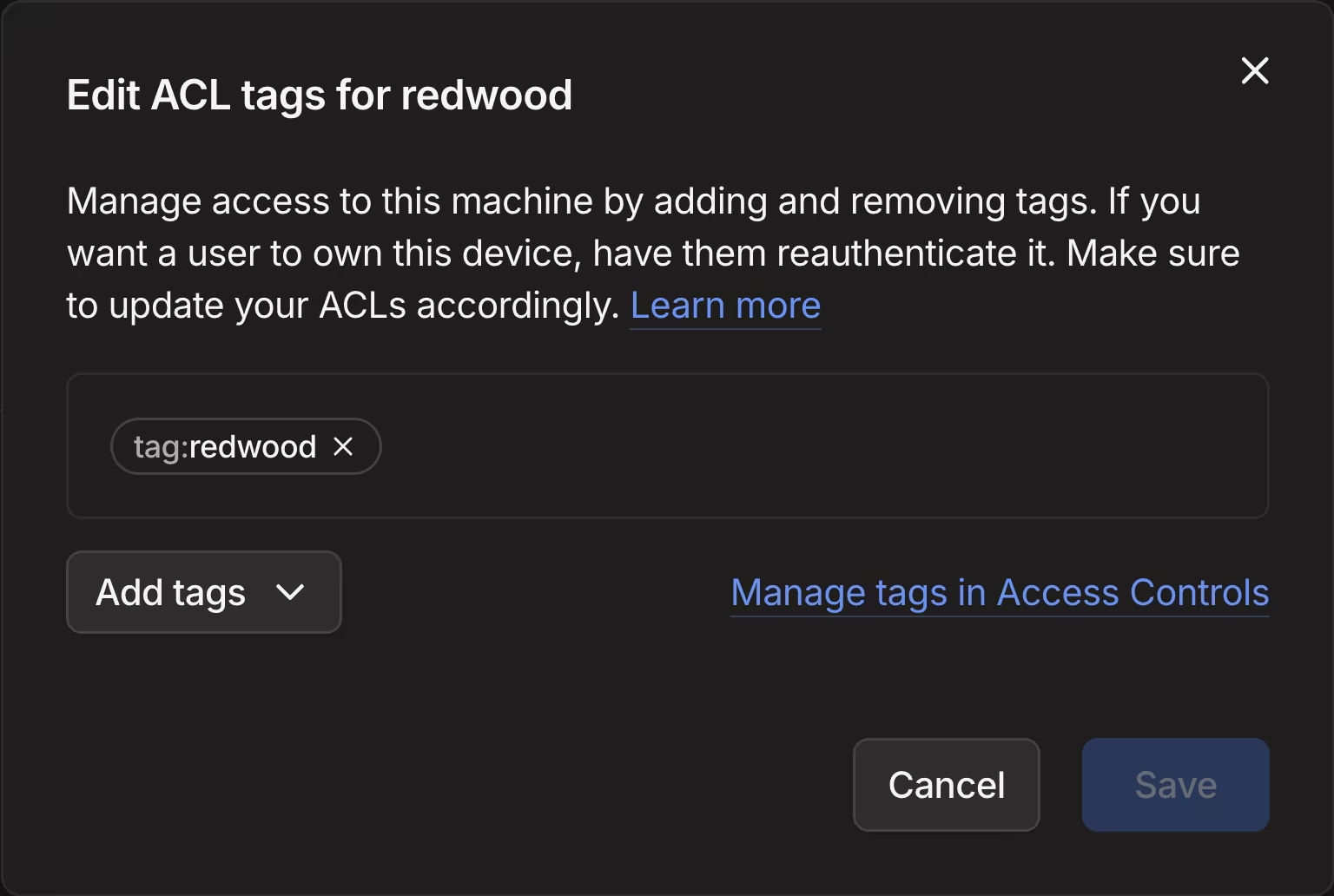
With our ACL tag created, we can now define our service and set the Service Tags to allow our host to auto-advertise the service.
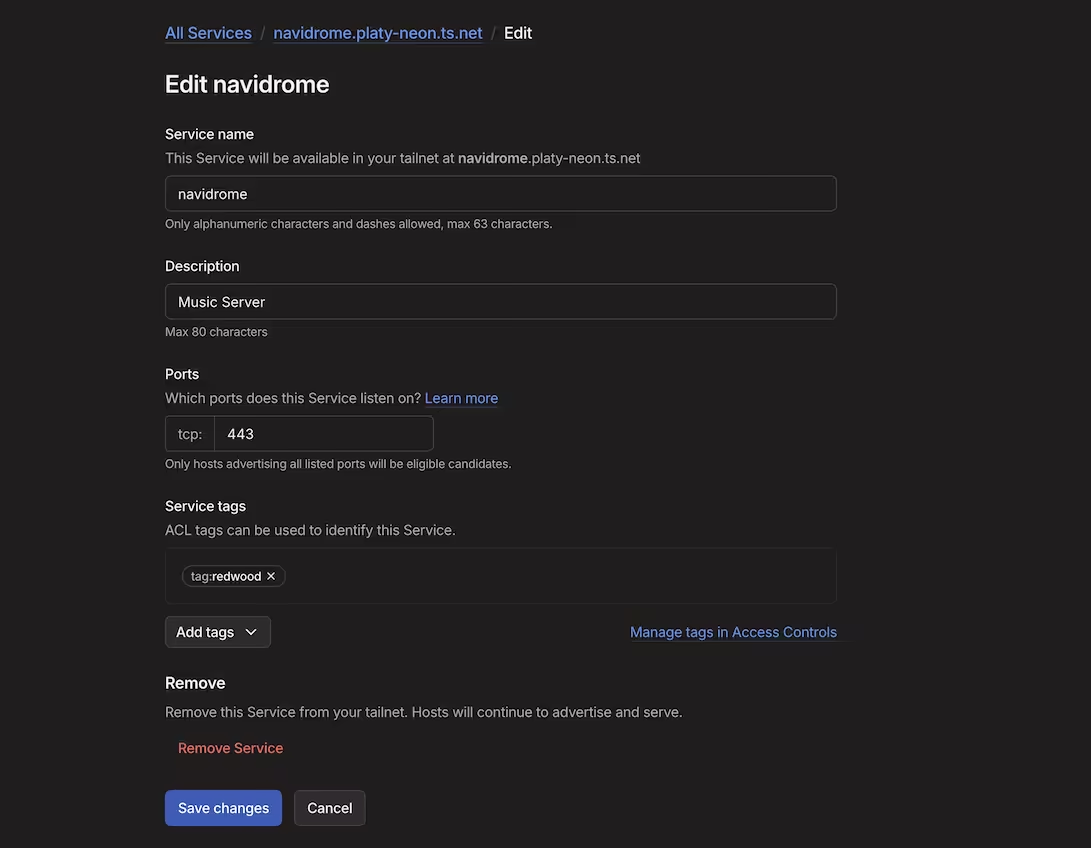
After hitting Save Changes, restart the app in TrueNAS and after it spins up you should have an active service with HTTPS!
In Summary
Believe it or not, there are still some questions for which Claude doesn’t have the answer. This was one of them! I’m confident that Tailscale will eventually document the quirks with their environment variables and update their Tailscale Serve Docker guides, but until then if you’ve found this guide helpful or if there’s anything I missed please let me know! In any case, hopefully you now have Tailscale serve working with HTTPs. Best of luck fixing the next problem with your stupid nerd project car :)
Footnotes
-
It still requires Tailscale (the company) to act as a control server that tells your devices where the others are so they can form the aforementioned encrypted p2p connections… Unless you want to self-host that too with Headscale but frankly that kind of defeats the whole purpose for me. ↩
-
Unless you want to! Tailscale can do that too with Tailscale Funnel. ↩
-
Ensure you are running Tailscale version
1.96.5or later so that services defined with the environment variable are advertised by default. ↩ -
Big shout out to Tailscale Senior Support Engineer Erisa who instantly solved this issue when I brought it up in the Discord and pointed me to a great example of the older config syntax! You can use the new (versioned) config syntax when setting up tailscale serve through the CLI with
tailscale serve set-config --all /mnt/tailscale-data/serve.jsonbut then you have to run that command every time and it won’t survive container restarts. ↩